
Put your app on your phone and sign in.
About two minutes. No app store, nothing to download. Pick your phone below and follow the pictures.
Which phone do you have?
Put it on your phone
Open your link in Safari
Tap the link to your app that we sent you. It opens in Safari, the iPhone's own browser.
Tap Share, then Add to Home Screen
A card slides up from the bottom of the screen. Do what it says: tap Share (the square with the arrow at the bottom of Safari; on newer iPhones it sits inside the ••• button), then Add to Home Screen, then Add.
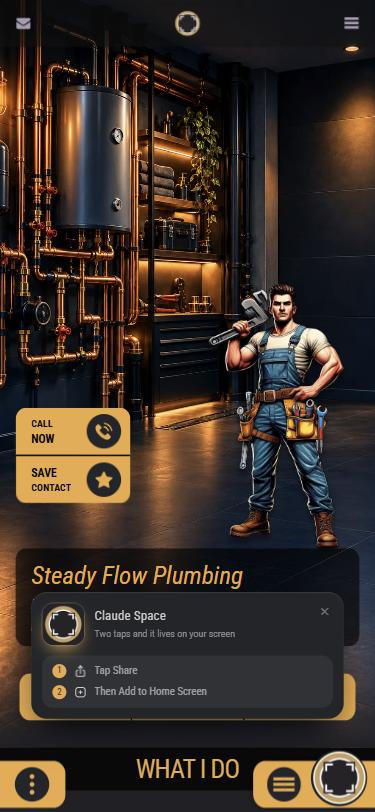 2Tap Share
Open it from your Home Screen
Your app is now on your iPhone, next to your other apps. Tap its icon to open it.
Sign in, so you can change it
Tap the three dots, then Sign in
Bottom left corner. A small menu opens: tap Sign in to the platform.
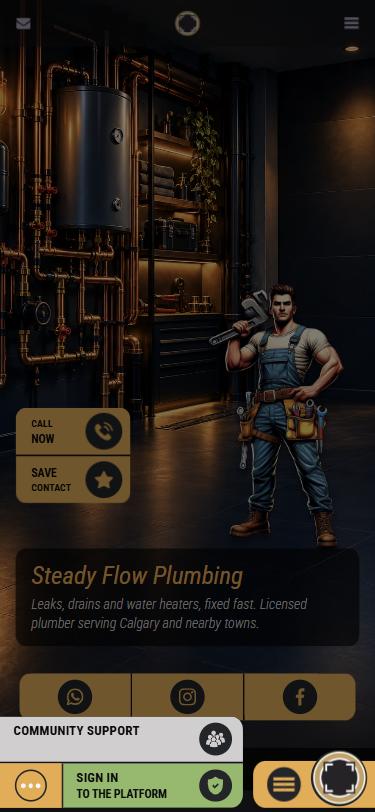 4Tap Sign in
Type your email
The email we made your app with. When the dot next to it turns green, tap Request one time code.
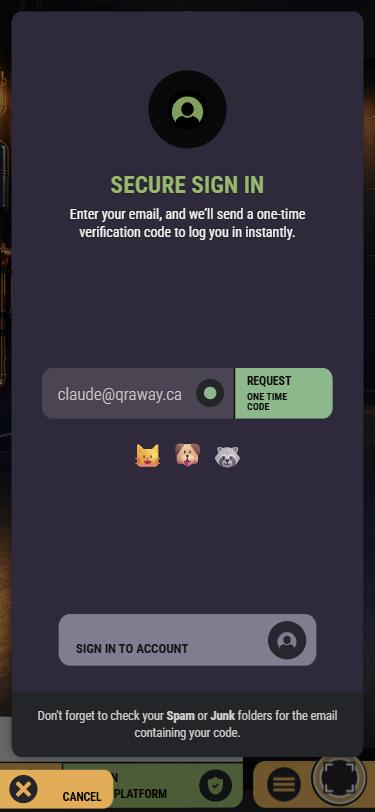 5Then tap Request
Check your email for the code
We send you a 6-digit code. Not there in a minute? Look in Spam or Junk.
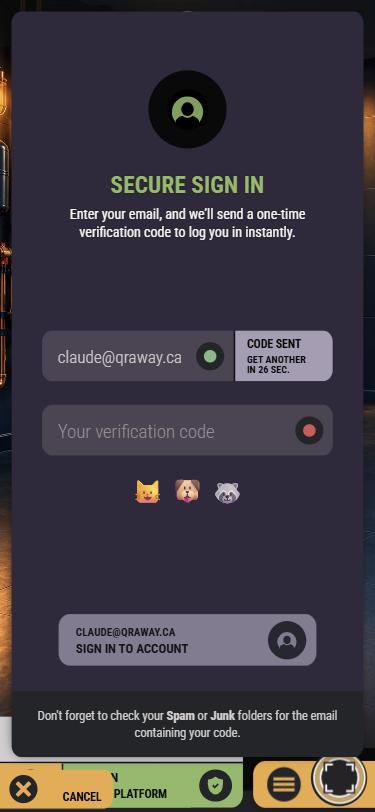 6Your code goes here
Type the code, then tap Sign in to account
When the dot turns green, the button at the bottom lights up. Tap it.
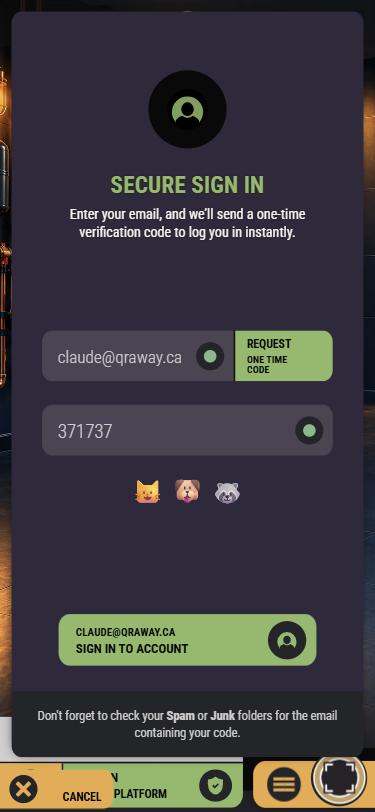 7Tap Sign in to account
Space Control appears
Your app reloads by itself, and a new Space Control button shows up above the three dots. That's where you change your app: your photo, your text, your buttons. Only you see it; your clients don't.
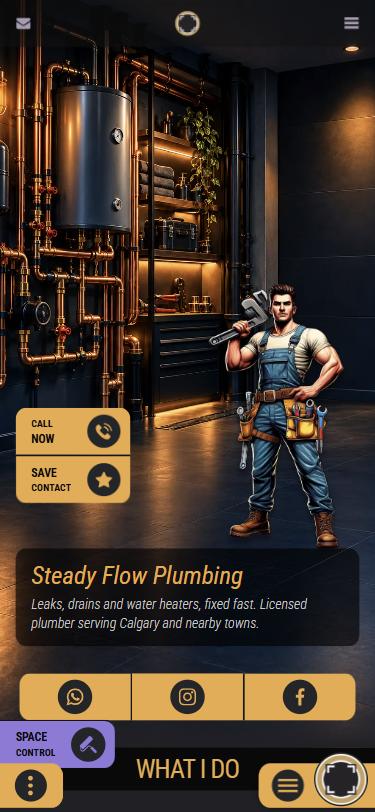 8Space Control
Put it on your phone
Open your link in Chrome
Tap the link to your app that we sent you. It opens in Chrome.
Tap Install
A card slides up from the bottom of the screen. Tap Install, then Install once more when your phone asks.
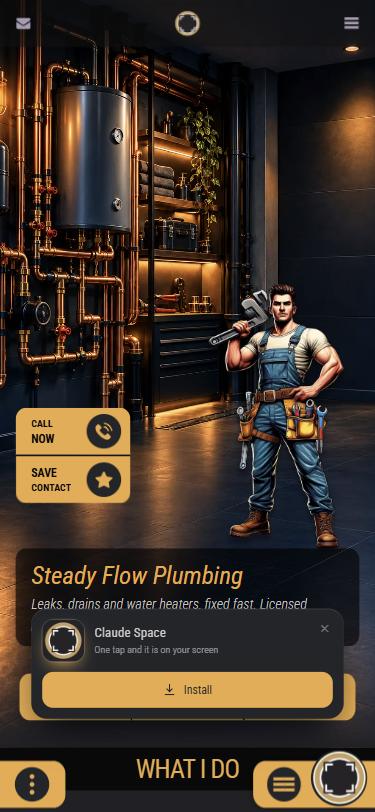 2Tap Install
Open it from your home screen
Your app is now on your phone, next to your other apps. Tap its icon to open it.
Sign in, so you can change it
Tap the three dots, then Sign in
Bottom left corner. A small menu opens: tap Sign in to the platform.
4Tap Sign inType your email
The email we made your app with. When the dot next to it turns green, tap Request one time code.
5Then tap RequestCheck your email for the code
We send you a 6-digit code. Not there in a minute? Look in Spam or Junk.
6Your code goes hereType the code, then tap Sign in to account
When the dot turns green, the button at the bottom lights up. Tap it.
7Tap Sign in to accountSpace Control appears
Your app reloads by itself, and a new Space Control button shows up above the three dots. That's where you change your app: your photo, your text, your buttons. Only you see it; your clients don't.
8Space Control
Questions about your app
Do I have to sign in to use my app?
No. Your app works for you and your clients without signing in. You only sign in when you want to change something.
Do my clients need to sign in?
No. They open your app from your link, your QR code or the icon on their phone. Signing in is only for you.
I don't see the card at the bottom.
Open your link again: in Safari on an iPhone, in Chrome on Android. If your app is already on your home screen, the card doesn't come up at all, because you already have it.
The code didn't come.
Check Spam or Junk first. Still nothing? Wait half a minute and tap Request one time code again.
Which email do I use?
The one we made your app with. Not sure which one it was? Write to us and we'll tell you.
Know someone who'd like an app like yours?
Tell us who it's for. We make it, and the preview is free. Pay only if you like it.
- The preview is free
- All you need is a phone
- Up to two rounds of changes
- From $199 a year, only if you say yes